
Working with the iOS App
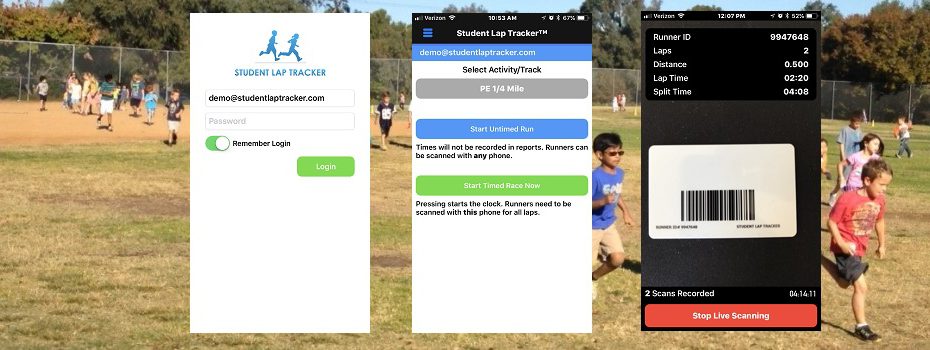
Welcome to the iOS App support page! The app is intended for Student Lap Tracker subscriber schools. At this time, there is no functionality for non-subscribers.
Download the App
Search for "Student Lap Tracker" in the App Store, or use the link provided by your school administrator. The app is free to download and requires your school's login credentials to access.
Supported Devices
The app runs on iPhone and iPad running iOS 11.0 or later. We recommend using an iPad for the best scanning experience, as the larger screen makes it easier to manage during running sessions.
Setting Up for a Run Session
- Open the app and log in with your school credentials
- Select the class or grade level you are scanning for
- Position the device so the camera has a clear view of student barcodes
- Begin scanning as students complete laps
Scanning Tips
- Hold the device steady and allow the camera to auto-focus on the barcode
- Scan from about 6–12 inches away for the best results
- If a barcode does not scan, try cleaning it or entering the student ID manually
- Ensure the device has a strong WiFi or cellular connection for real-time syncing
Troubleshooting
If you experience issues with the app, try the following:
- Ensure the app is updated to the latest version
- Restart the app and log back in
- Check your internet connection
- Contact our support team if the problem persists
For additional support, please visit our Contact Us page or email us directly.